The phone app
The app is where you check what goes out, approve it and stop it. It is built for a phone, one thumb, a few seconds at a time, and it works in a desktop browser too. This guide goes through it in the order you meet things.
Installing it
Open your instance's address on the phone, or scan the QR code from the dashboard. In the dashboard, go to Devices & passkeys and press Add a device: it shows a QR code and a code that works once. Scan the QR code with the phone's camera, open the link and create the passkey when the phone asks. The app's own screen, Set up this device, takes the same code in its Setup code field if you type it instead; Create passkey finishes it. An attempt that fails doesn't use the code up.
Then add the app to the home screen, which is also what lets it send notifications. Next time, Sign in with passkey. To add a second phone, use Add a device again; Devices & passkeys lists every passkey.
If a workspace's admin invited you as a creator, you start from their invite link instead: it opens the app, and you make a passkey (or sign in with the one you already have) and join the workspace. The link works once, for 7 days; ask for a new one if it has run out. Admins and editors get their links to the dashboard.
What your role allows
You have a role in each workspace. Admins and creators do everything in the app: plan, edit texts, drafts and release dates, approve, pause and resume, connect their accounts. Editors do the same except approving, pausing, resuming and connecting; they leave those to someone else. Either way, approving and resuming ask for your own passkey. See Security.
Switching workspaces
If you're a member of more than one workspace, the header names the one you're in under the title, and tapping it opens a sheet from the bottom listing your workspaces with your role in each. Choose one and the app reloads there. With a single workspace there's no picker. A notification link opens the workspace it came from; if you're no longer a member of it, the app says "You're no longer in that workspace."
A workspace can have an icon, set by its admins in the dashboard. When it has one, the app shows it beside the workspace's name in the header and in the picker, and in the notifications from that workspace. The icon on your home screen stays the app's own.
Your name
Settings → You has two fields. Name is your name everywhere in Bongsu; leave it empty and the start of your email address is used. Shown in workspace as is how the people of the workspace you're in see you: on the approvals, pauses and drafts you make, and in its member list. It only applies there, so you can be "Jo" in one workspace and "Jo Park, shop" in another. Leave it empty to be shown by your name. Each field saves on its own, and a name can be up to 60 characters.
In the picker, a workspace that shows you by another name than your own says so under it: "Shown as Jo Park, shop".
Today and "Needs you"
Today opens first. At the top is Needs you, and only when something waits on you:
- items that are overdue: their time passed and they haven't gone out;
- items to approve or approve again in the next 7 days;
- a link to the open drafts, to schedule or refuse;
- a line for items on hold: "won't go out until you release it".
When nothing waits, the block isn't shown. Under it come Today, Next 3 days and Recent activity, a collapsed list of the latest notifications.
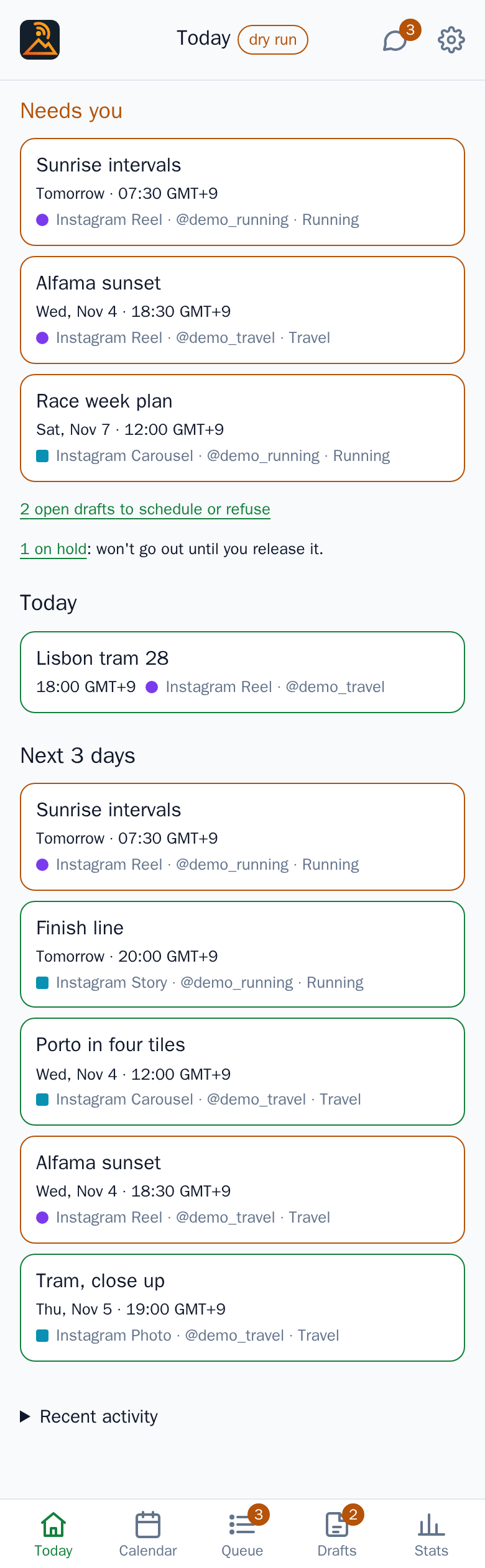
Every list uses the same row: a title, then the time with its zone, the channel and the account. The row's border says the state: green for approved, posted and public, amber for Needs approval, Re-approve and On hold, red for failed. The tab bar at the bottom has Today, Calendar, Queue, Drafts and Stats; Queue and Drafts carry a count of what needs you. The top bar has Comments and Settings.
Calendar
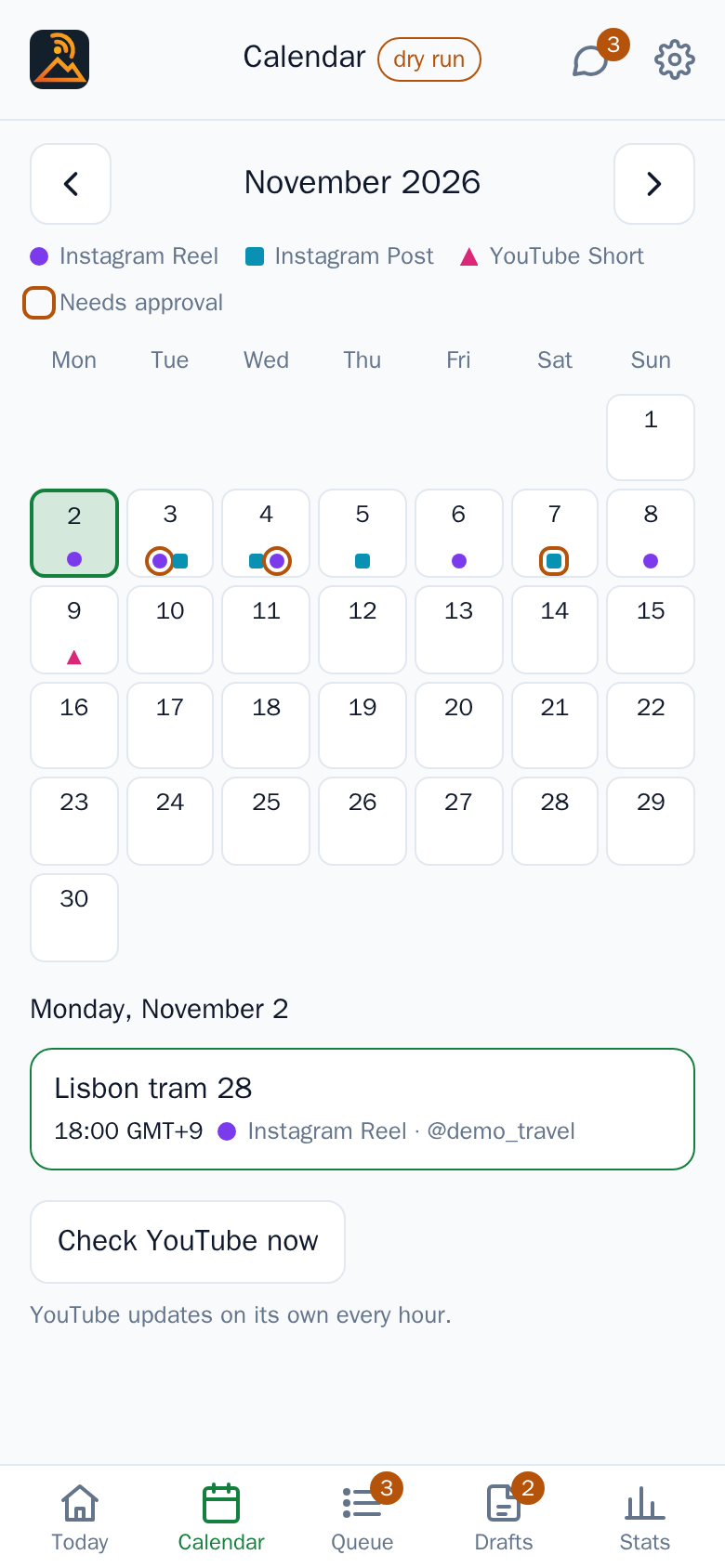
A month grid with a coloured dot for each item on a day, and a ring around a dot that needs approval. Tap a day to list it below. The calendar shows your Instagram items and your YouTube videos. YouTube is read from YouTube itself and refreshes on its own every hour; Check YouTube now reads it at once.
Queue
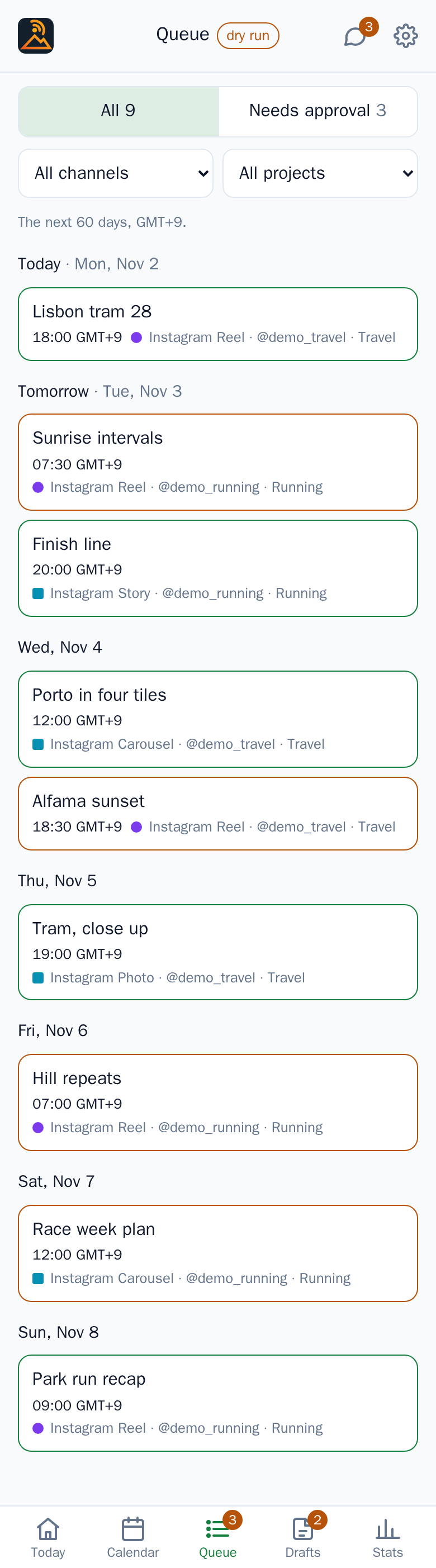
The next 60 days, grouped by day. All and Needs approval (each with a count) switch the list, and the two selects filter by channel and project. Tap a row to open the item.
Drafts
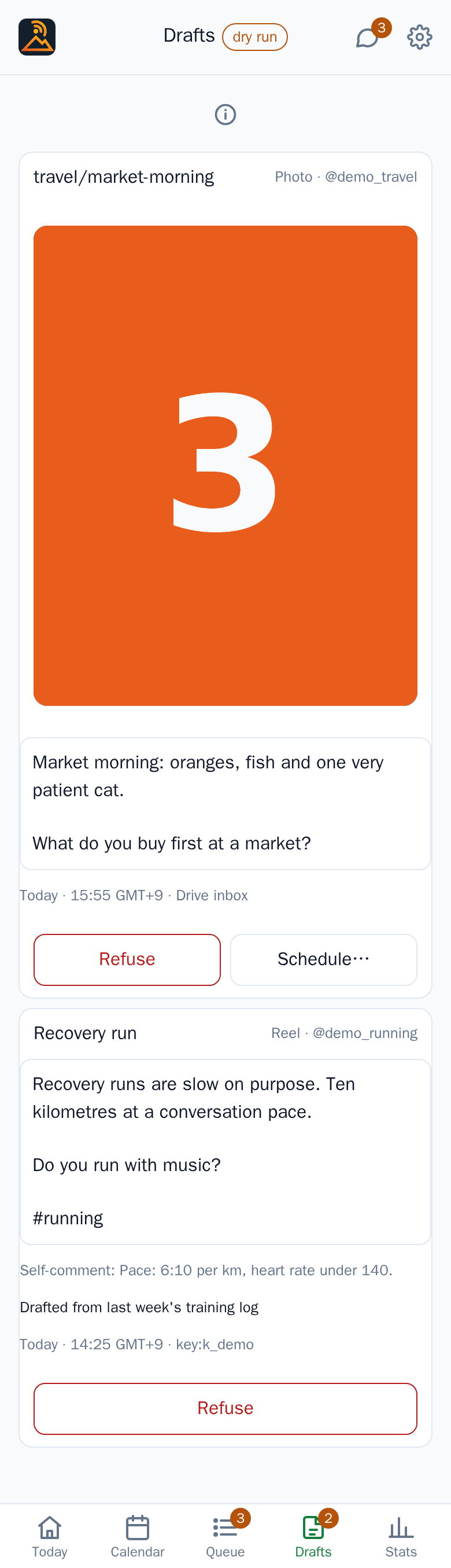
Drafts are things that arrived and aren't scheduled: files dropped into Drive's inbox, proposals from an agent, and what you add yourself. Each shows its media and its texts, with Refuse (it asks once, and a refused draft can't be brought back) and, once it has media, Schedule…. A draft without media, such as a proposal from an agent that hasn't attached any yet, can only be refused.
Scheduling asks for the account, the date and time in your zone, a name, and the texts: Caption, Self-comment, Second comment and, for images, Alt texts. A single image or video can be published as a Reel or Post, or as a Story. If another item already holds that hour on the account, you are told, and free hours appear as buttons to pick. Schedule opens the item's page, where you approve it. Nothing in Drafts is published before that.
New draft adds one from the phone: choose files, a project, a name and the texts, then Upload and create
draft. The files go from the phone straight to Drive, so the button only appears when uploads are set up (see
Google Drive). They land in the workspace's media folder, under _uploads/, and the page names the folder to drop files in for the inbox.
The item page
An item's page shows what will be published, as it will be: the target line (channel, account, day, time and zone), the caption, the self-comment, the second comment, the alt texts and the media. For a video you can also choose the Cover frame. The pencil next to the name sets a display name used by the app, the calendar and the daily summary.
If the caption has warnings, a Caption check notice lists them; they don't block. Problems that do block are listed under Fix before approving:. Both come from the checks in Captions and checks.

Approving
The approve bar at the bottom repeats the target and says what will happen: Approve: publish and the time. Tap it and confirm with your passkey. Approving binds exactly what you saw: the texts, the media and the time. The bar then turns into a confirmation, Approved., with Done and Hold it instead….
The page may open on a saved copy, so the button reads Checking for changes… until the current version has loaded. If the item changed while you were looking, the approval is refused, the page reloads the new version and says so; you approve that one. A button that reads Fix 2 problems first stays disabled until the listed problems are fixed.

An approved item says who approved it: "Approved by Jo, 18 Oct 09:12, exactly as shown", with the name the workspace shows for that person. Someone who has since left the workspace is still named, by their own name.
After a change
Change a text, the media or the time, whether you, an agent or a file replaced in Drive did it, and the item needs your approval again: it is marked Re-approve and the bar returns. If only the comments changed, the bar says Approve comments and the post itself stays approved.
Change date
The Release date card shows when the item goes out. Change date opens a date and time in place; Save new date moves it. For an approved item the app tells you: "It needs approving again for the new time." A time that clashes with another item on the account is refused, with free hours offered.
Hold this item
An approved item that hasn't gone out has a Stop just this one card with Hold this item. It asks once ("Hold this item?"), needs no passkey and keeps the approval. The item shows On hold and won't go out until you press Release hold on the card, which now carries that title. Reach for this before pausing everything.
An approved item whose time passed by more than 6 hours (for instance because the instance was down) isn't posted late. It waits for you: post it by hand, or move the date and approve again.
A YouTube video's page
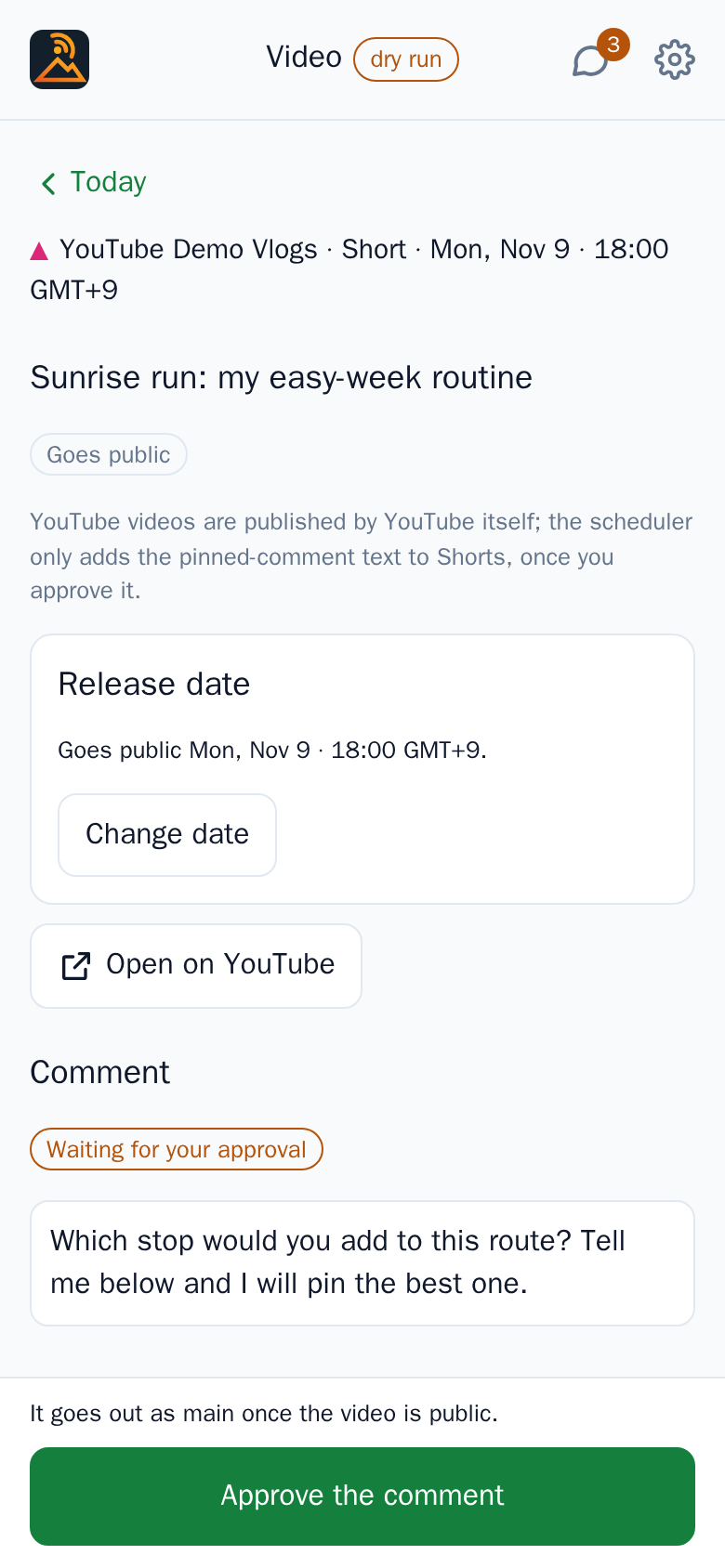
A YouTube row opens the video's page: the channel, Short or Video, the day and time, its state, and Open on YouTube. A video Bongsu uploads opens as an item like a post, with its title, translations, subtitles and thumbnail and its own Approve button (see YouTube); the rest of this section is about videos uploaded elsewhere. Bongsu doesn't publish those, but a scheduled one has a Release date card: Change date, pick the date and time, Save new date, then confirm with your passkey. For a Short there is also the Comment Bongsu posts as your channel once the video is public, with its Approve the comment button. See YouTube.
Results
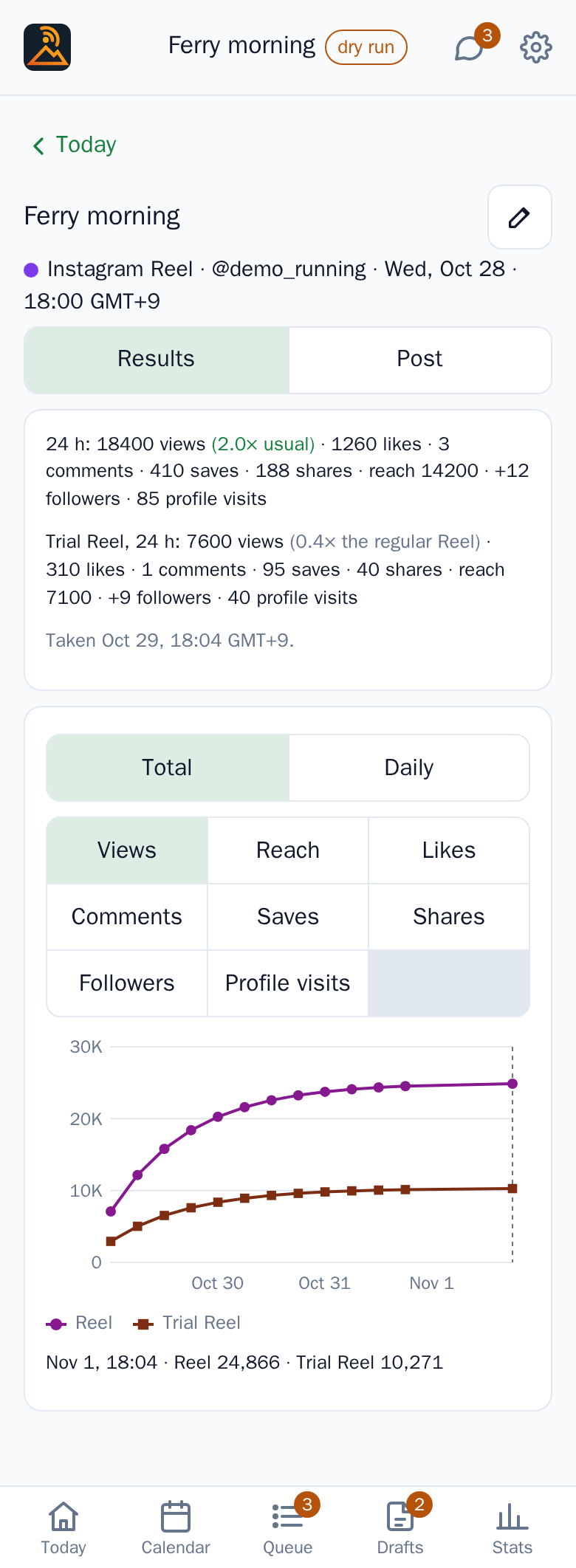
A published Instagram item's page has two views under the target line, Results | Post. Post is the page as it was published; Results opens first once the post has its 24 h numbers, and the 24 h notification's Open results button lands there. At the top is the 24 h line: views, then how they compare with the account's usual views ("1.4× usual"), likes, comments, saves, shares and reach, then the followers and profile visits the post brought ("+12 followers · 85 profile visits") when Instagram reports them, with the time the sample was taken. A Reel with a Trial Reel copy also shows the copy's own 24 h line, compared with the regular Reel ("×the regular Reel"), with its own followers: the point of a Trial Reel is the people who didn't follow you yet.
Under it is a chart of the post's samples (see How it works for when they are taken). Total | Daily switches between the running totals and what each day added: a sampled day's growth since the previous sample, with a gap for a day without one (from day 30, one point a week). The metric picker chooses Views (the default), Reach, Likes, Comments, Saves, Shares, Followers or Profile visits. The Trial Reel copy is a second line, with its own marker. The line under the legend reads out one point: the latest at first, then the one you tap or drag to, or pick with the arrow keys. Before the first sample the view says "No results yet: the 24 h numbers arrive a day after publishing."
A public YouTube upload's page gets Results | Video the same way once it has samples, with views, likes and comments (YouTube gives no reach, saves or shares) and, when the channel was connected with the analytics scope, the Subscribers it gained. A channel connected before that scope existed shows "Subscribers gained: not available until the channel is reconnected with analytics" instead: see YouTube.
Stats and the channel page
The Stats tab lists each account with its follower (or subscriber) count and the change since a day before, then Last 7 days, most viewed: the posts and videos published in the last week with their views, likes and comments, each opening its Results or video page. Bongsu samples every account's count once a day; an instance that imported the nightly snapshots of an earlier collector starts with their history. Tap an account for its page: the big count, then a period (7 days, 30 days or 90 days), a chart of its followers (Total | Daily), a chart of the views its posts added per day, and What brought followers: its posts and videos ranked by the followers they brought in the period, with each one's share of the period's gain. A row opens the post's Results or the video's page. YouTube's subscriber count is rounded by YouTube (three significant figures above 1,000), so a channel's daily changes are coarse; the videos' subscribers need the analytics scope (see YouTube).
Connecting accounts
Admins and creators connect their own accounts from Settings → Accounts: Connect Instagram and Connect YouTube sign in with the account and bring you back to Settings, where the accounts it reached are listed. Reconnect signs in again when a connection is marked "needs reconnecting". The accounts belong to the workspace you're in. If a button says the instance admin has to add its OAuth app first, ask them: the Meta and Google apps are set up once for the whole instance (The dashboard). Editors don't see this.
If connecting from the app installed on your home screen says to start again, your phone probably opened the sign-in in a separate browser. Open Bongsu in the phone's browser (Safari on iPhone) and connect from there.
Pausing a workspace and resuming
Settings → Publishing has Pause this workspace: "Stops this workspace's Reels, posts and Shorts comments until you resume. Approvals are kept; other workspaces keep publishing." It asks once. While paused, a red banner, "Publishing is paused.", sits under the top bar on every screen with a Resume link, and the approve button reads Approve (held while paused). A person resumes, with Resume with passkey: approved items go out at their time again, and any overdue ones go out now (within the 6-hour window). Agents may be allowed to pause (their own workspace), never to resume.
The banner says who paused it: "Paused by Jo. Nothing goes out until you resume." A pause by an agent key names the key. Drafts you upload from the app, and the drafts list, name the person who made them too.
A pause holds one workspace only, and resuming releases only that one. Admins and creators may pause and resume; editors may not.
Notifications and the daily digest
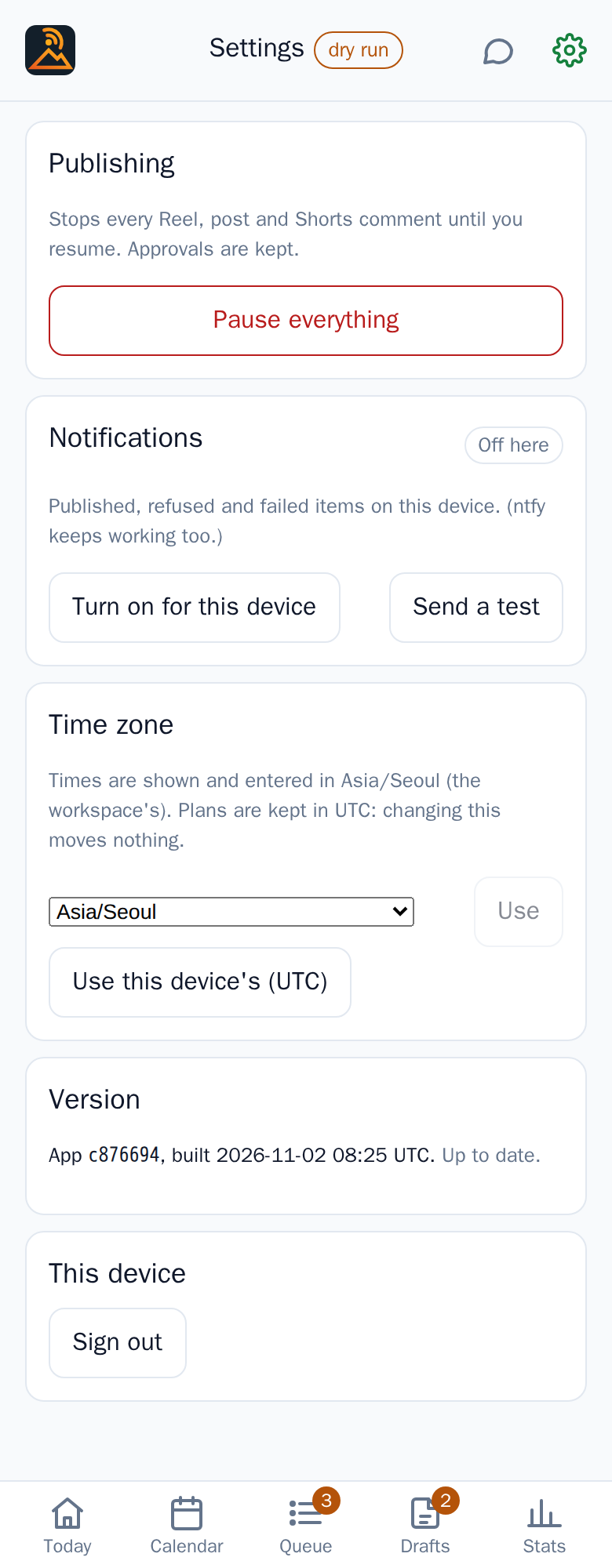
Settings → Notifications: Turn on for this device, then Send a test to check it. They cover your workspaces'
notifications on that device; you choose which below. If the browser had been told to block them, the app shows the
steps to allow them again. Each push carries up to two buttons, such as Open in app; the optional ntfy topic gets
the same buttons. A device gets the notifications of every workspace you're a member of, and they open in their
workspace; when you can open more than one workspace, each title starts with the workspace's name
(Workspace name · ). Send a test goes to your own devices only.
Below the device switch, What
Once a day, at the digest hour set in the dashboard's Settings, one message lists today's items and their state, what needs approval in the next 3 days and what failed since yesterday. See How it works.
Comments and replies
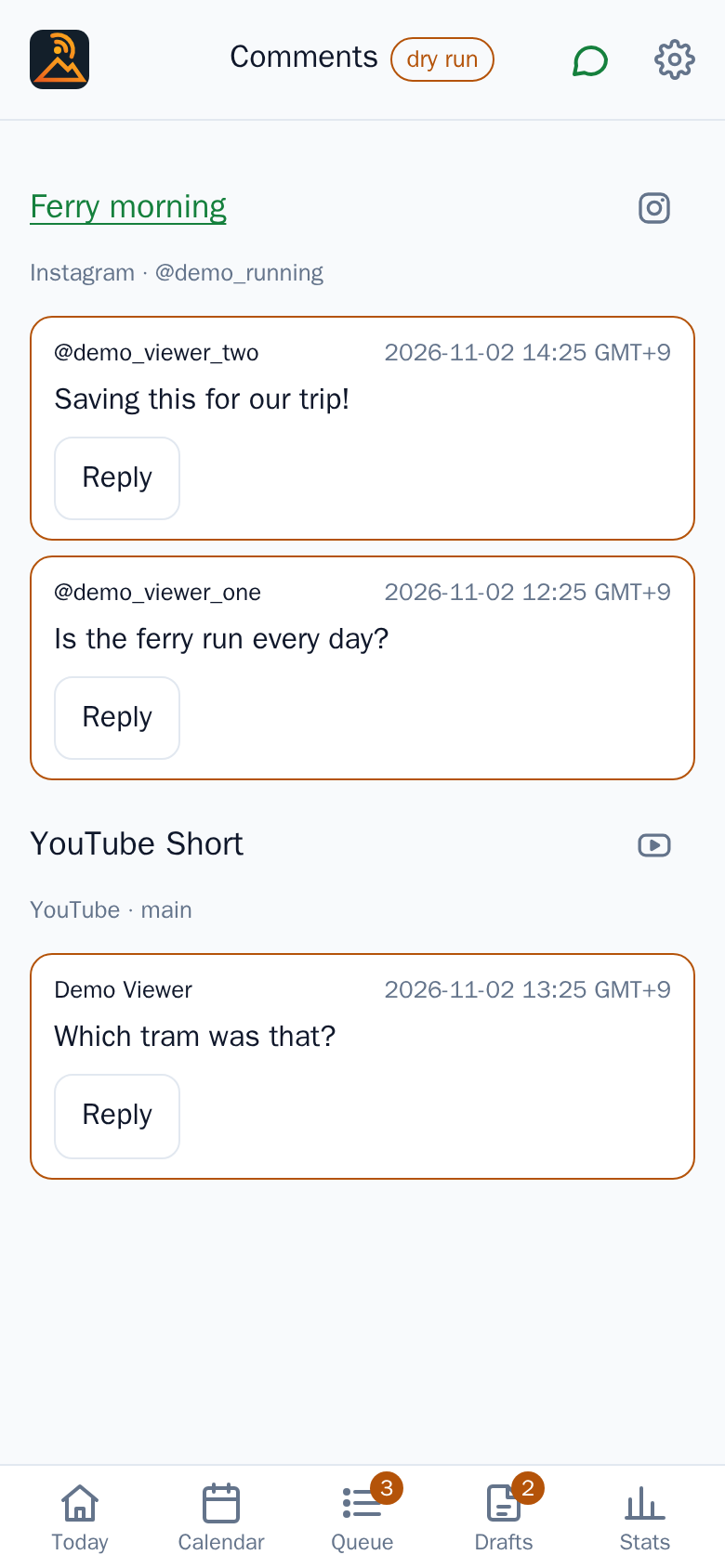
The Comments icon in the top bar lists comments on the last two weeks' Instagram posts and YouTube Shorts, per post, checked every 15 minutes; new ones are highlighted. Reply opens a field and Send reply posts it straight away. There is no approval for replies: you write them, so they go out as you wrote them.
Offline and old data
When the app can't reach the instance it shows what it saved last, in an amber notice: "Showing what was saved at 08:07 GMT+9. Offline: couldn't reach the scheduler." with Try again. You can read the plan this way, but an item can only be approved once its current version has loaded. Settings → Version says whether the app is current; if a newer one is deployed, Update now reloads it.
Time zone
Every time is shown with its zone. Settings → Time zone picks the one the app shows and takes times in: the workspace's, or your own ("Use this device's…"). Plans are stored in UTC, so changing it moves nothing. Back to the workspace's undoes it.