The dashboard
The dashboard is where you set up and look after an instance: connect accounts, add devices, make keys for agents.
You use it rarely and on a computer. The daily work, approving and watching, happens in the phone app.
It lives at https://<your instance>/dashboard and signs you in with a passkey. Anything that changes who can do what
(connecting, making a key, adding a device, removing something) asks for a fresh passkey check if your last one is
older than 10 minutes. While the instance is in dry run, an amber banner says "Dry run: nothing is published."
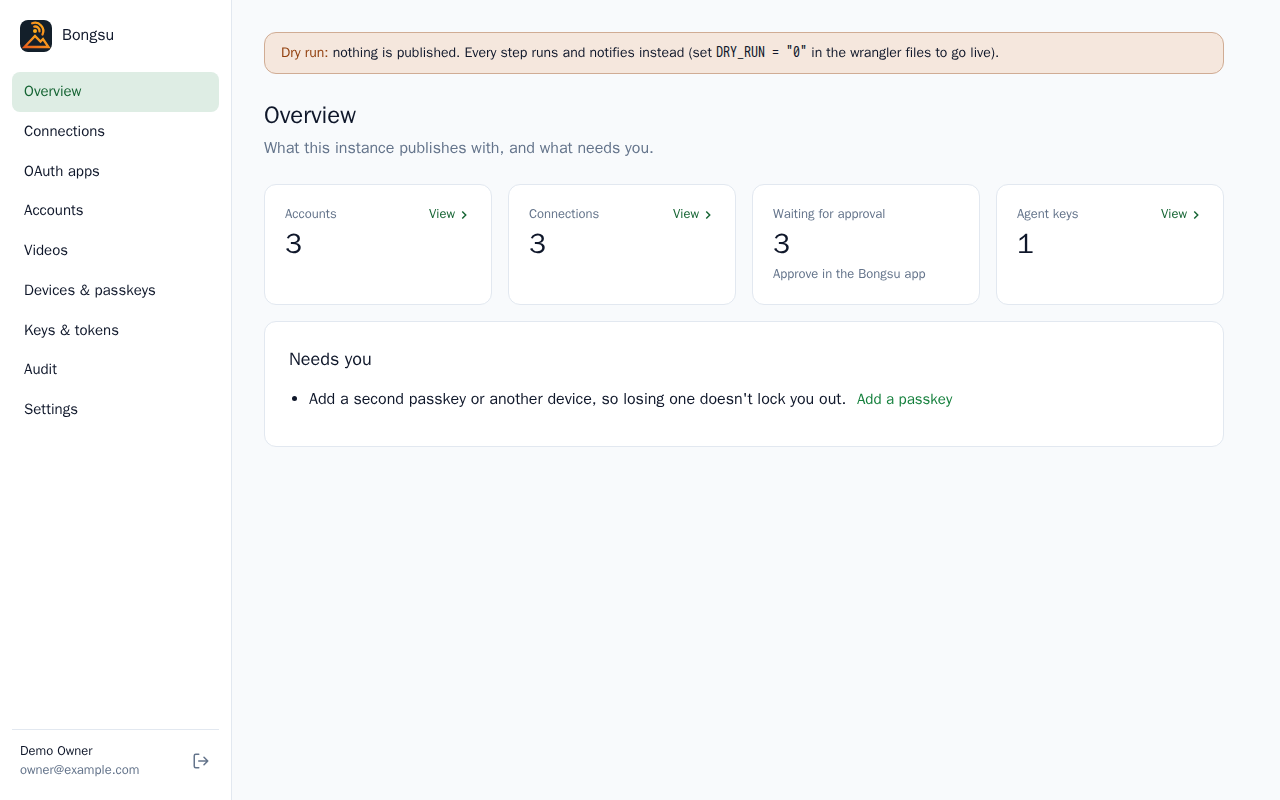
The sidebar lists, in order: Overview, Connections, Accounts, Videos, Devices & passkeys, Keys & tokens, Members, Audit and Settings, and for an instance admin an Instance group after them: Workspaces, Media and OAuth apps. This guide follows it, with the Instance group's pages at the end of their topics.
People and roles
You work in one workspace at a time, with the role you have in it. Admins run the workspace: everything in this guide, including its connections, keys, settings and members. Editors can look at the accounts and videos and manage their own passkeys, devices and CLI tokens, but they can't change accounts and don't see Connections, agent keys, Settings or Members. Creators don't use the dashboard: signing in here points them to the phone app, where they plan, approve and connect their own accounts. An instance admin is a person who manages the whole instance: its workspaces, its media stores and its OAuth apps, and who works in any workspace as its admin. Security has the table.
First run
A new instance has no workspace and no one in it. The first visit to /dashboard asks for the SETUP_TOKEN, your name
and email and a passkey; that makes you the instance admin, who belongs to no workspace yet. The dashboard then asks
you to Create your first workspace: a name, its time zone and its first admin, you preselected or someone else by
email (they get an invite link). Once you're its admin it opens on Get started; otherwise it waits on the
Workspaces page. An instance admin who is a member of no workspace (the instance's workspaces are clients',
say) signs in to the Instance pages, Devices & passkeys and the instance's Audit, and opens a workspace from
Workspaces.
Overview and Get started
Overview counts your accounts, connections, posts Waiting for approval (approve those in the app) and agent keys. Under Needs you it lists what to fix: no connection yet, connections that are expiring or broken, fewer than two passkeys, fewer than three recovery codes left.
Until setup is done, a banner reads "Finish setting up: 2 of 5 done." and Continue opens Get started. Its five steps can each be done later from their own page: your time zone and daily digest hour, your OAuth apps, where your media live, an account to connect, and the device you approve on. The OAuth apps and the media stores are the instance's: a workspace admin who isn't an instance admin sees those two steps without a button, for the instance admin to do. A last card, Then: dry run, and going live, points to Settings.
Connections
A connection is how Bongsu reaches a platform: a login or a token. One connection can reach several accounts. Connected lists each with its Status (Connected, Expiring or Broken), its Accounts and when it Expires. Reconnect signs in again; Remove keeps the accounts and their plans but publishes nothing to them until they are connected again, and revokes Bongsu's access where the platform allows it.
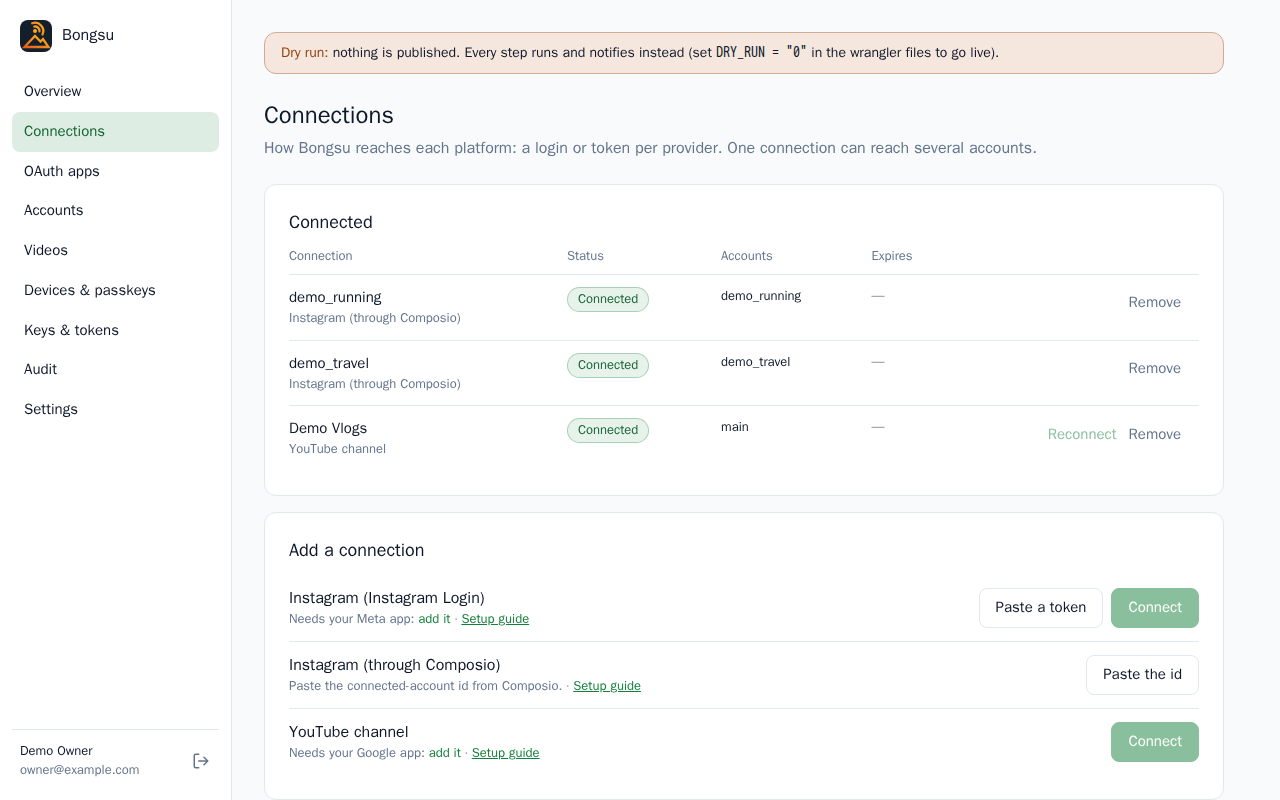
Add a connection offers three kinds, each with a Setup guide link:
- Instagram (Instagram Login): Connect signs in with the account, or Paste a token takes a long-lived one, which Bongsu renews before its 60 days run out. See Instagram.
- Instagram (through Composio): Paste the id takes the connected-account id from Composio. See Instagram through Composio.
- YouTube channel: Connect signs in with the Google account that owns the channel. See YouTube.
Google Drive is not a connection here: it is a media store, set up on the Media page.
Media
Where the instance's Reels and photos live (instance admins; a workspace's own stores are in Settings → Media). Every workspace uses these stores in its own media folder. Your stores lists each one with its Status and when it was last Checked (Bongsu checks every store weekly): Test checks it reads and writes, Make default makes it the store used where nothing names one (planned items given by a path, drafts from agents, the first choice on the app's upload page), and Remove stops Bongsu reading it, after saying how many waiting approvals that voids. Removing asks for your passkey again.
You can set up several, one of each kind:
- Google Drive: Connect Google Drive signs in with your Google app (add it under OAuth apps first). See Google Drive.
- S3-compatible bucket: Add a bucket takes the service (AWS S3, Cloudflare R2, Backblaze B2, MinIO or other), the bucket, an optional folder in it and a key; Test and save saves it only once it answers. See S3-compatible buckets.
- This server's disk: on Docker and Node, the server's media folder (
MEDIA_DIR).
Keys and grants are stored encrypted and never shown again.
OAuth apps
Bongsu signs in to Instagram and YouTube through apps you own: the Meta app (Instagram) and the Google app
(YouTube). Each card shows the redirect URL to register in that app, with Copy, and takes its ID and secret
(the secret is stored encrypted and isn't shown again). Replace changes them; Remove stops new connections and
reconnects, but connections already made keep working. Make each app once. If a notice says ENCRYPTION_KEY isn't set,
set it first, as the deploy guide says.
Accounts
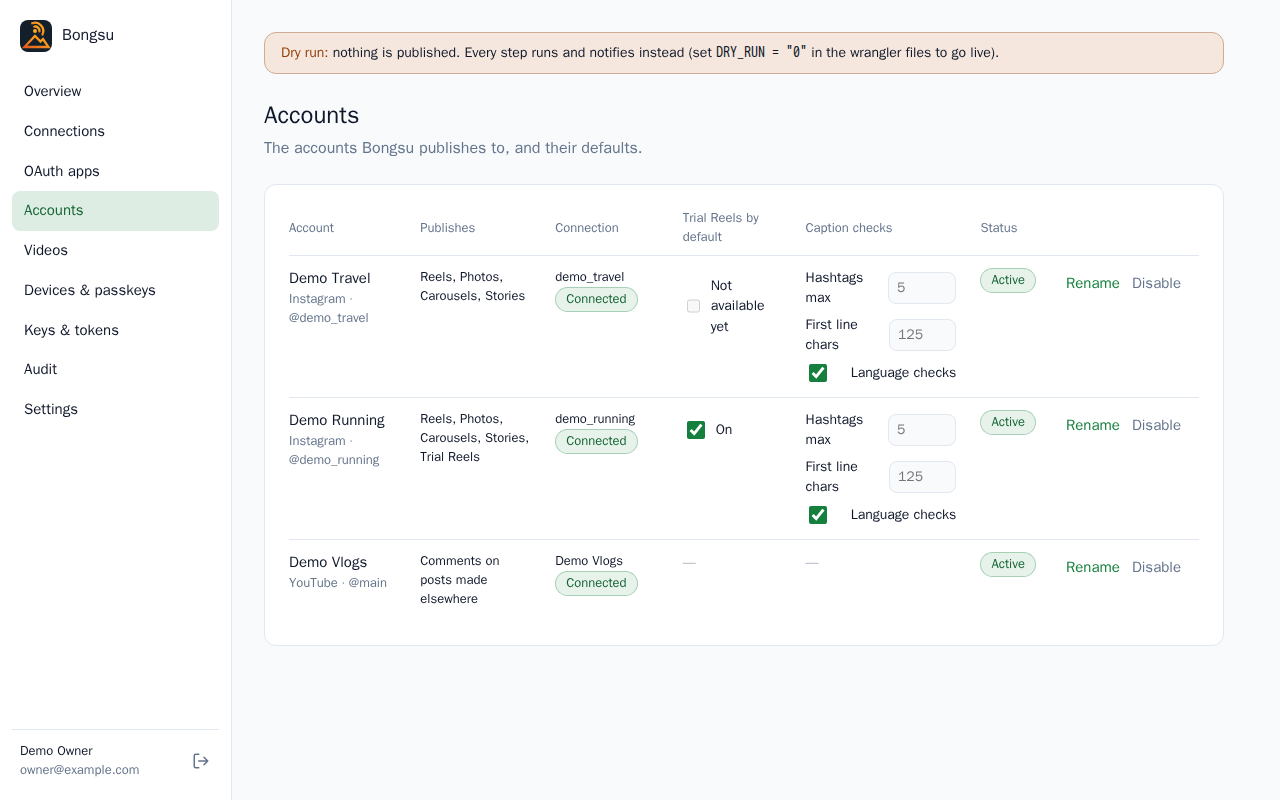
Each connected Instagram account or YouTube channel is a row:
- Publishes says what Bongsu can do with it: Reels, posts and so on for Instagram, and Trial Reels when the account is set up for them.
- Trial Reels by default says whether the account's Reels start as Trial Reels, shown to non-followers first; each item can still change it. It reads "Not available yet" for an account that can't post them. See Instagram through Composio for the limit.
- Caption checks holds the account's own rules: Hashtags max, First line chars and Language checks. See Captions and checks.
- Made for kids and Category (a YouTube channel only) are the defaults for the channel's new videos; a video's own options win. Changing Made for kids voids the approval of a planned video that follows the default. See YouTube.
- Rename changes the display name. Disable stops all publishing to the account and keeps its plan, and Enable undoes it. Remove is only offered for a disabled account with nothing left to publish, and what was already published stays in the history.
Videos
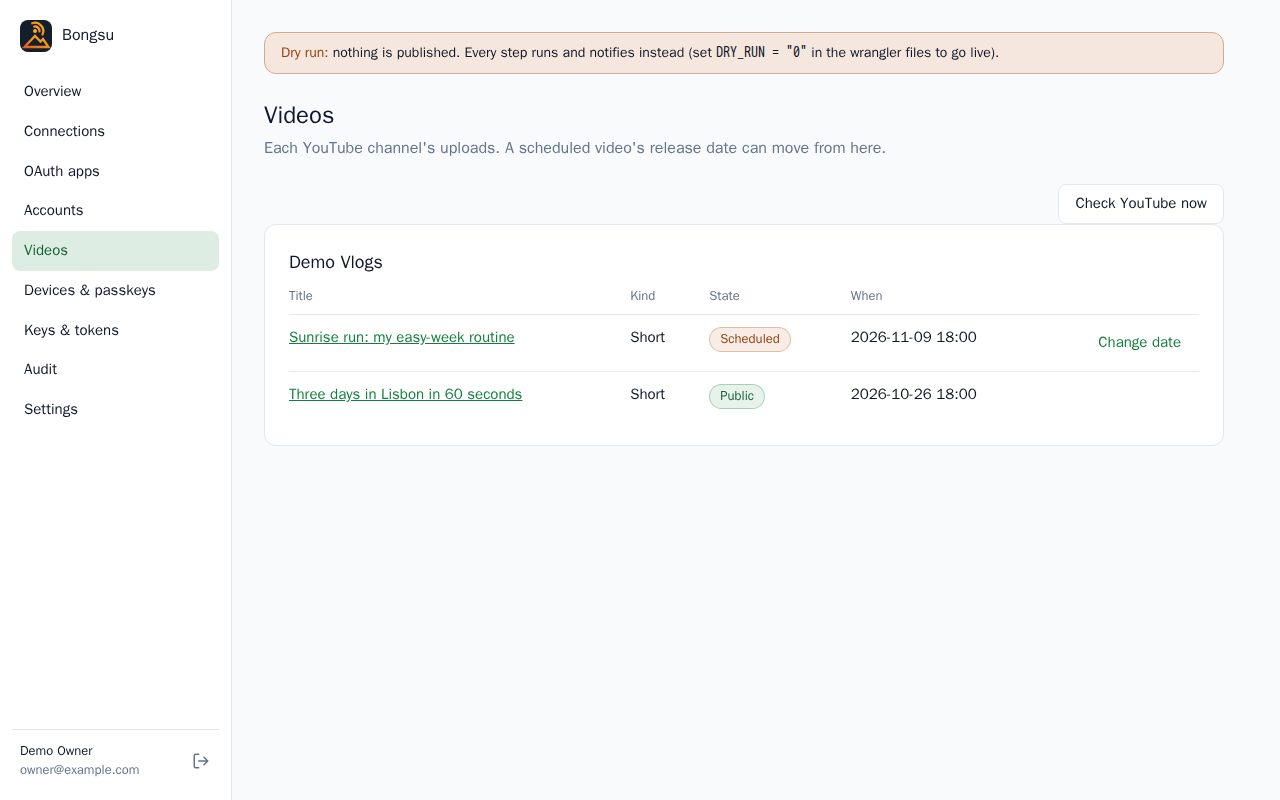
Each YouTube channel's uploads, with the title, Kind (Short or Video), State and When. Check YouTube now reads the channel at once instead of waiting for the hourly refresh. A scheduled video has Change date: pick the date and time, then Save. It moves the release time only; it never makes a video public.
Devices & passkeys
Your devices approve posts in the app; your passkeys sign you in here and there.
- Add a device shows a QR code and a code that works once. Scan it with the phone, create its passkey and add the app to the home screen. The page says Connected when the device is done, and "The code expired before the device used it." if it wasn't.
- Passkeys lists each with when it was added and last used. Add a passkey here adds one on this computer. Remove is refused for your only passkey: add another first.
- Recovery codes: Make new codes shows a fresh set once and cancels the old ones. Each signs you in once when every passkey is lost (five tries in 15 minutes). Keep them somewhere safe.
Keep two passkeys and a few recovery codes, so losing a phone doesn't lock you out: Overview reminds you until you have two passkeys and at least three codes.
Keys & tokens
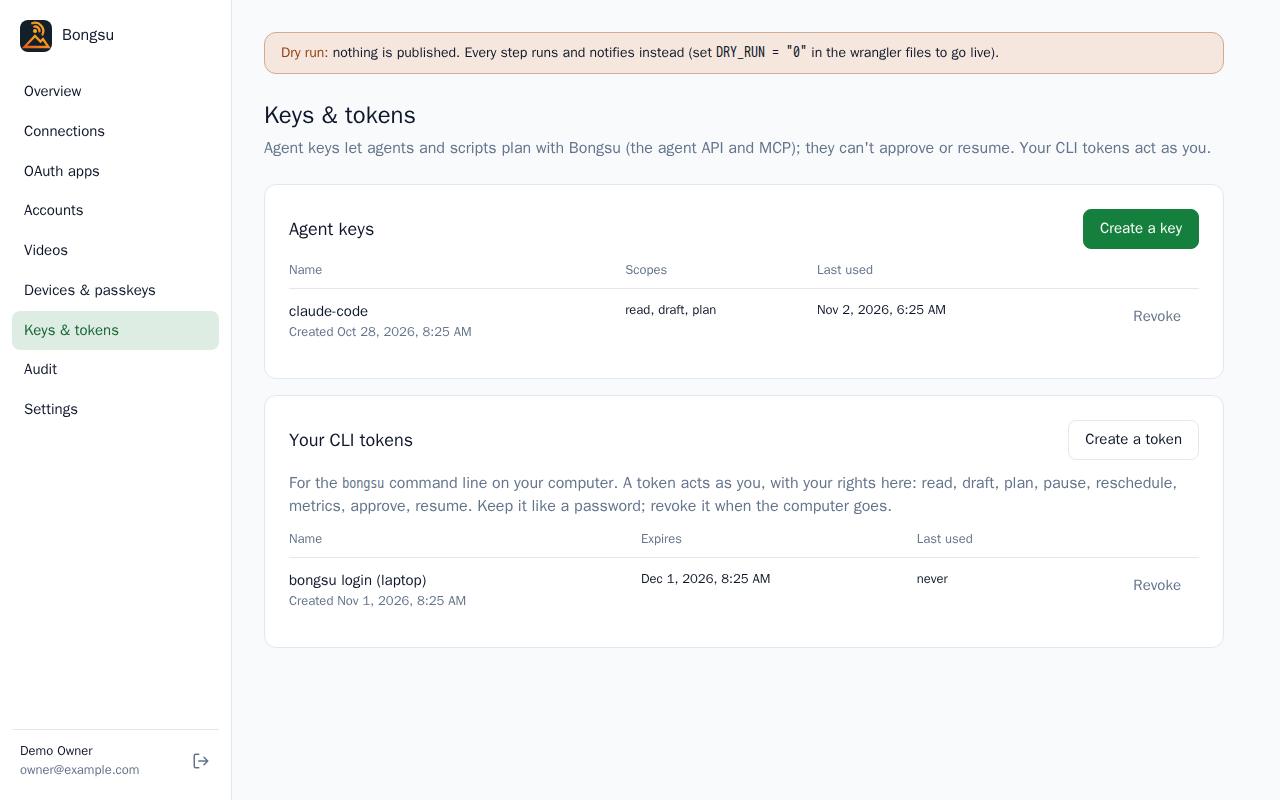
Agent keys let an agent or script use Bongsu's API and MCP. Create a key asks for a name and what it can do:
read (the plan, jobs and notifications), draft, plan (add, reschedule, hold and remove items), pause, and
reschedule (move a YouTube release date; not given by default) and metrics (upload metrics samples collected
elsewhere; not given by default). Start with read, draft and plan. The key is
shown once; copy it then. A key can't approve or resume, whatever its scopes, and Revoke stops it at once. See
Security.
Your CLI tokens are for the bongsu command on your computer. A token acts as you, so keep it like a password:
Create a token, name the computer and choose how many days it lasts, and Revoke it when the computer goes.
Members
The workspace's people and their roles, for its admins. Invite someone takes an email and a role (admin, editor
or creator) and makes a link that works once, for 7 days: copy it then, it isn't shown again. With email set up
(MAILER, Configuration) it's also sent to them. Admins and editors join in the dashboard,
creators in the app: someone new makes a passkey, someone with a Bongsu account signs in with theirs. Pending invites
are listed with Revoke.
Each member is listed by the name this workspace shows for them, with their email. Edit name (admins) sets that name for this workspace only, up to 60 characters, and an empty one goes back to the person's own name; people can also set it themselves in the app's Settings. The audit log and the pages that say who approved, paused or drafted something use the same name.
Each member's role can be changed in place, and Remove takes them out of the workspace at once: signed out of it, their CLI tokens for it revoked, their devices no longer notified there. A workspace always keeps one admin: make someone else admin before the last one steps down. An admin who's removed or no longer an admin loses the invites they sent. Each of these changes asks for your passkey. An instance admin also sees Make instance admin (or Remove instance admin) by each member; the instance always keeps one.
Audit
Every change to the workspace, newest first: when, who, what and the detail. Load older shows the next 50. An instance admin can switch to The instance: new workspaces, media stores, OAuth apps, instance admins and sign-ins outside any workspace.
Switching workspaces
Someone who can open more than one workspace sees a switcher at the top of the sidebar, naming the one they work in: choose another and the dashboard reloads there, with the role they have in it. It shows for people who are members of several workspaces and for instance admins, who can open all of them. A person in a single workspace sees no switcher.
Workspaces
Instance admins see an Instance group under the sidebar's sections: Workspaces, Media and OAuth apps. Workspaces lists every workspace with its Members, Accounts, when it was Created and its Status. Create a workspace takes a name, a time zone and its first admin: you, or someone invited by email (copy their link). Open works in that workspace, as its admin, until you open another (the sidebar's switcher does the same). Rename changes its name (its own admins can also rename it in Settings), and Add an admin makes an invite link for a new admin.
Archive stops a workspace completely: nothing in it publishes, its agent keys and CLI tokens stop working, its members can't open it, it gets no daily digest and its comments and metrics are no longer read. Its plan, texts, accounts and people stay, and Restore brings it back as it was (posts that came due meanwhile go out only within the catch-up window). Archiving, restoring and adding an admin ask for your passkey again.
Scheduler is a read-only section for instance admins: the three runs and their times, JOBS_PER_TICK and
INBOX_WORKSPACES_PER_RUN as the cron last recorded them, when the inbox last ran, and a notice when the schedules
are off (SCHEDULES=off on Node). They are set where the instance is deployed (Configuration); making the schedule tunable is tracked in issue #64.
Settings
Settings has three tabs: General, Media and OAuth apps (/dashboard/settings, /settings/media,
/settings/apps).
Media (admins) sets the workspace's media folder (a name made from the
workspace's name, or UPLOADS for a workspace kept from before this release; Bongsu never moves files, so move them yourself when you change it) and its own S3 bucket
or Google Drive. A workspace's default store is its own if it has one, else the instance's. A file must be in the
workspace's own store or inside its folder in an instance store, or it's refused with "not in this workspace's media".
The inbox scans <folder>/inbox in each of the workspace's stores, a few workspaces per run in turn.
OAuth apps (admins) holds the workspace's own Meta and Google apps, with the same redirect URLs as the instance's. A connection uses the workspace's app if it has one, else the instance's, and keeps the one it started with.
General is the rest of this section.
Icon (admins) is an optional picture for the workspace: a square PNG, between 192 and 1024 pixels on a side and at most 200 KB. Upload an icon (or Replace the icon) sets it at once and Remove takes it away. In the dashboard it shows beside the workspace's name in the sidebar. In the app it shows in the header and in the workspace picker, and in the push notifications from that workspace. The installed app's icon on a phone's home screen stays the instance's own, because it belongs to the app and not to a workspace. Setting or removing the icon is in the audit log.
Workspace holds its Name (it can't be emptied), the Time zone, the default for everyone (each person can
choose their own in the app), and the Daily digest hour, in that zone. Notifications (ntfy) optionally posts the
workspace's notifications to an ntfy topic too, on ntfy.sh or your own server: paste the topic's
https:// address (a protected topic's token as ?auth=…), Save, then Send a test. Anyone who knows a topic's
address can read it, so pick a long, random name; it's stored encrypted (the instance needs ENCRYPTION_KEY) and the
page only shows its server afterwards. Each workspace has its own; changing or removing it asks for your passkey again.
Instance shows the address and whether publishing is Live or in Dry run. To go live, change DRY_RUN where
the instance is configured and deploy again; see Configuration. The instance's name and colour are
set when the app is built, see Branding.